
Getting Started with Amazon ECS (101) – Cluster & Task
- Published on
- Authors
- Name
- Sylvain BRUAS
- @sylvain_bruas
1 – What is a Cluster
An ECS cluster is a grouping of Amazon Elastic Compute Cloud (EC2) instances that will host your containers.
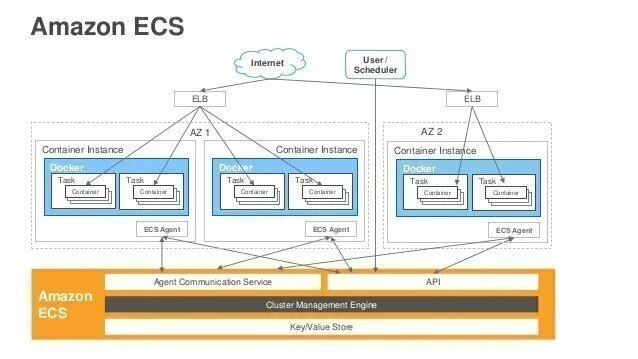
Example of an ECS cluster
A cluster can contain one or more instances of different types and sizes. In our example, we will use a t2.micro.
2 – Creating an ECS Cluster
Let's connect to the AWS web console for ECS. Click on "Cluster" in the left menu. On the next screen (cluster list), click "Create Cluster" to create our first cluster.
On the cluster creation screen, we have a comprehensive form with many options. We will use the following fields:
- Cluster Name: helloworldCluster
- Provisioning Model: On-Demand Instance
- EC2 instance type: t2.micro
- VPC: choose the VPC (Amazon Virtual Private Cloud) where you want to create your instances
- Security group: Choose/Create a security group that opens port 80
- Click the blue "Create" button to create the cluster. It should now appear in the cluster list.

ECS Cluster
3 – Task Definition: How to Define Container Launches
A task definition is a list of parameters that will allow the launch of our containers.
To create one, click on "Task definitions" in the left menu, then on the blue "Create new Task Definition" button.
This first task definition will allow us to launch a container with its HTTP port (80) mapped to port 8080 on the host instance.
For our example, we will fill in the following fields:
- Task Definition Name: Helloworld-1
- Container Definitions: click "add container"
- Container name: Helloworld
- Image: 123456789012.dkr.ecr.eu-west-1.amazonaws.com/helloworld:latest
- Memory Limits (MB): 128
- Port mappings:
- Host: 8080
- Container: 80
- protocol: tcp
- Click the "Add" button
You can then click the blue "Create" button.
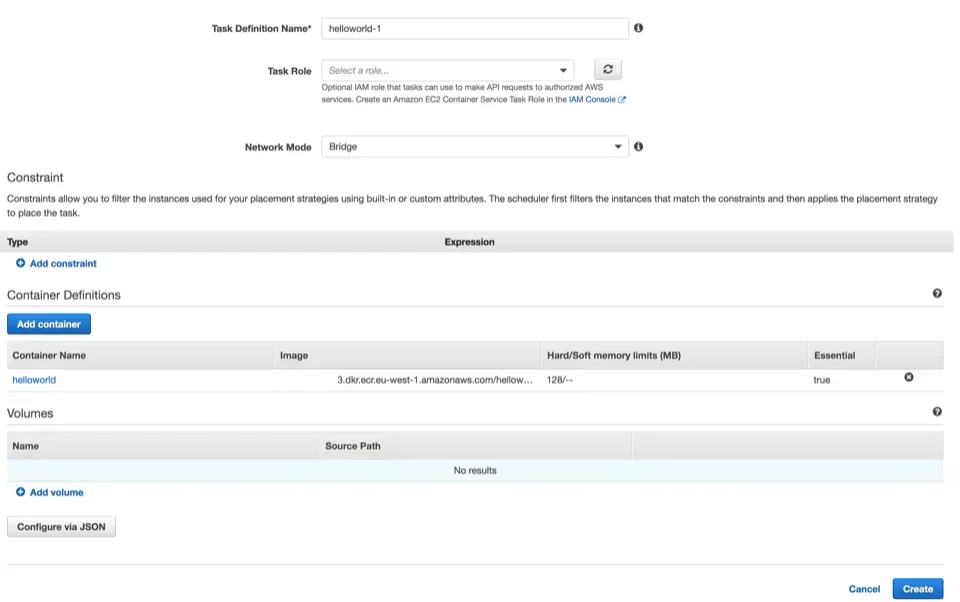
ECS Task definition
Many other options are available in Container Definitions, allowing fine-grained definition of container requirements (volume mapping, container linking, etc.).
4 – Running a Task
Now that we have created our host machine Cluster and described how to launch the container, we can finally run it.
To do this, click on the "Cluster" menu then choose our helloworldCluster from the list. We arrive here:
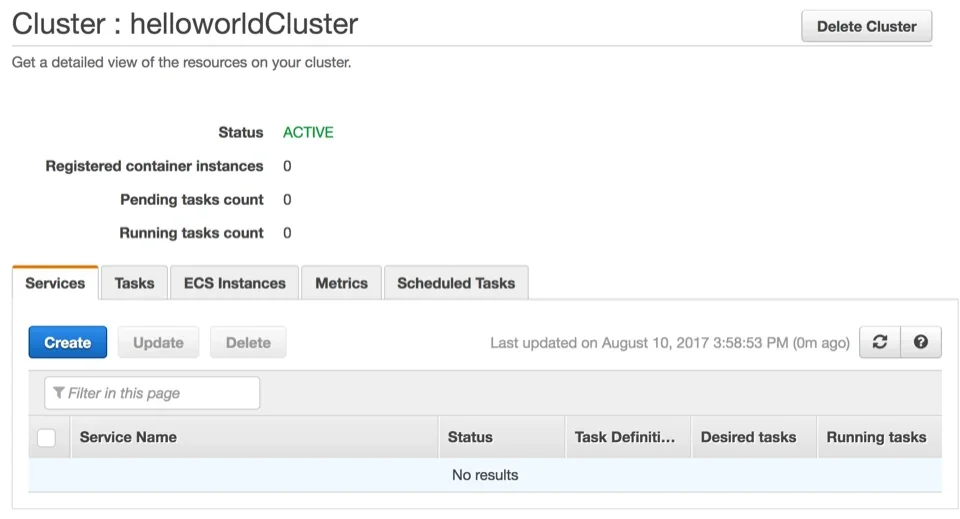
ECS Cluster Hello world
Click on the "Task" tab then on the blue "Run new Task" button. On the next screen, we will choose all the elements we created previously.
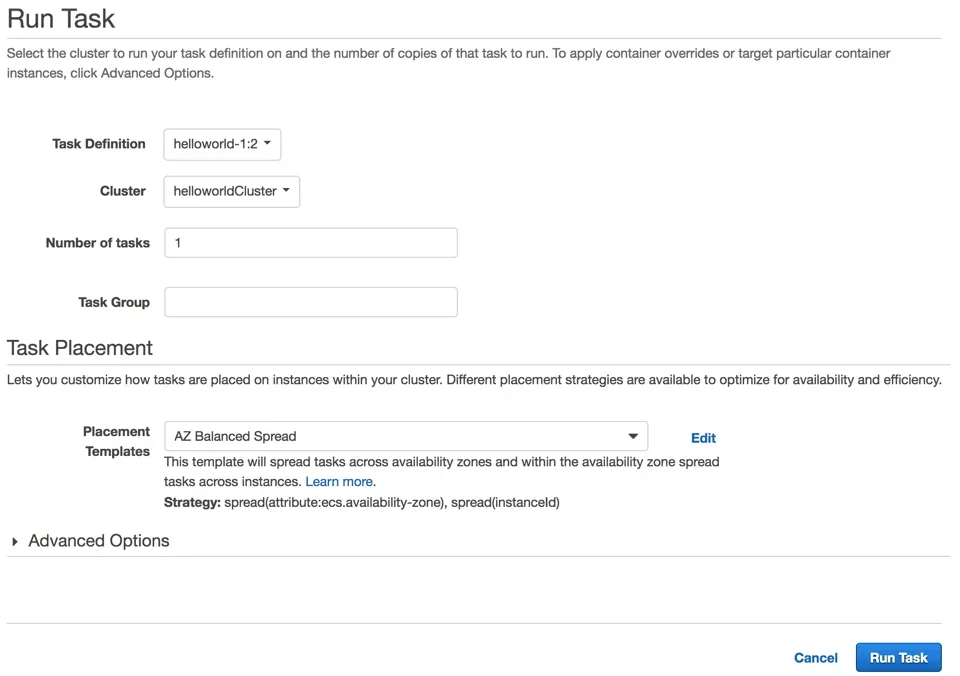
ECS run task
The task is created and ready to receive messages.
5 – Connecting to the Container
All that remains is to validate that the container responds to our HTTP requests.
We will connect directly to the host instance on port 8080.
To find its IP, simply click on the task name (in our case 67f6a5b4-4…) to display the details. In the container section, click the triangle next to the container name (helloworld) to display the details. The IP will be in the "Network Bindings" section.
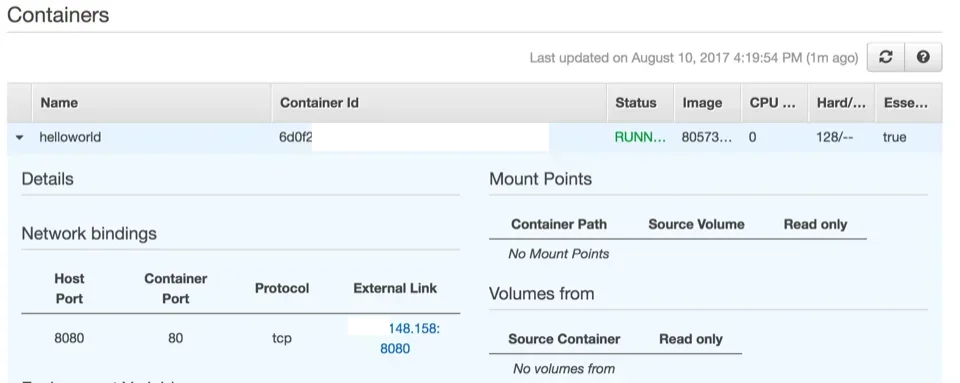
ECS host IP
You can then open your favorite browser and enter the container URL to display the page.
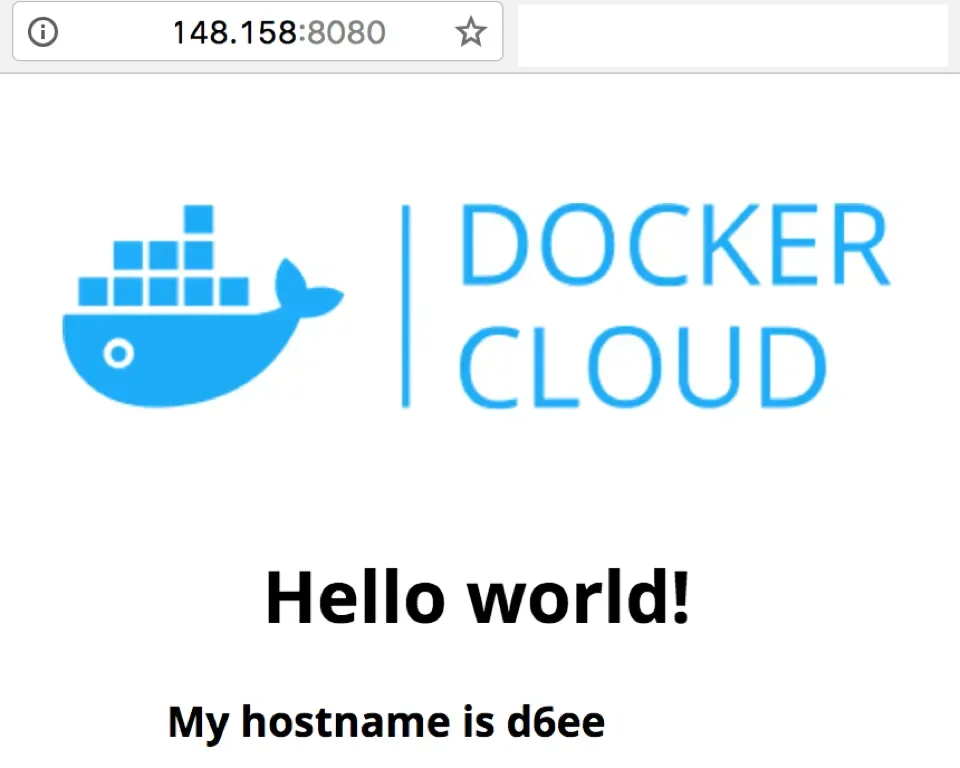
ECS task result
Congratulations, you have run your first container on Amazon EC2 Container Service.
In the next article, we will go further by creating a service based on the existing container image. Multiple containers will be launched and able to respond to your requests.